Voice calibration
If you do just one grown-up thing in Rondelek, make it this one. It takes a minute or two, and it’s what lets the games and the vowel screen understand your child.
Why it matters
Every child’s voice is a little different. A four-year-old’s “aaa” sounds nothing like a ten-year-old’s, and a laptop’s built-in microphone hears things differently from a headset. So Rondelek doesn’t guess from a textbook. Instead, it listens to your child saying the six vowels, remembers what each one sounds like, and from then on recognises your child against their own voice.
That’s why calibration isn’t optional. Without it, the games and the vowel screen have nothing to compare against, so they simply stay quiet. (The sound board works either way.) Until it’s done, the child’s Voice calibration tile says Start here!, and the Games screen offers a shortcut to it.
Doing it together
- On your child’s screen, tap the yellow Voice calibration tile.
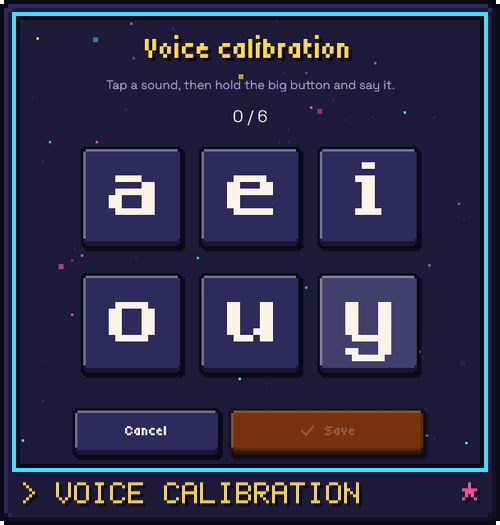
- You’ll see six big keys: a e i o u y. Tap the first one.
- Hold the big orange Hold to record button (or the
Spacebar) and let your child say the sound and keep it going, like a little song: “aaaaaa”. Let go when they stop. A second or two is plenty. - Press Next sound and do the same for the next vowel. (After the last one, the button says All sounds done and takes you back.)
- When all six keys have turned green with a tick, press Save. That’s it.
While you’re recording, a small level bar shows how loud the sound is arriving. If the app hears noise but not a clear vowel, it gently asks the child to keep the sound going.
Tips for a great calibration
- Make it a game. “Can you sing aaa like an opera singer?” “Make an ooo like an owl!” Children who are having fun give the clearest sounds.
- Two or three takes per vowel help a lot. Just hold the button again on the same vowel: once a bit higher, once a bit lower, once a bit louder. The key shows how many takes it has (×2, ×3). Recognition gets noticeably steadier with a little variety.
- Use the microphone your child will play with, at about the same distance, in a quiet-ish room. The same microphone matters more than a fancy one.
- Watch the level bar. It should move nicely but not turn red. Too quiet means move closer, and too loud means back off a little.
- Did one go wrong? Tap that vowel and press Start over to record it again. The others stay as they are.
When to calibrate again
Calibrating again means recording all six vowels afresh. It’s just as quick as the first time, so don’t hesitate:
- You switched microphones, or moved to a very different room. The For grown-ups page even notices when the microphone has changed since the last calibration, and tells you.
- The games seem confused, mixing up two vowels or not reacting.
- Your child’s voice has changed. Children grow, and their vowels get clearer with practice. A fresh calibration now and then keeps up with them.
You can start it from the child’s Voice calibration tile, or from the For grown-ups page (Calibrate the voice, on the Profile card).
Still a little picky?
If recognition feels too eager or too fussy even after a good calibration, the For grown-ups page has a Voice recognition card with three settings: Relaxed, Normal and Strict. The grown-ups page explains them.
Curious how the app actually tells an a from an o? The next page, How it works, in plain words, explains the idea without any code.